Notebook Tools
| |
|
Notebook Tools |
Previous Next |
|
In addition to basic preview and download functions, the Phoenix AN provides special tools for creating and downloading custom data products. This section describes how to create and download custom RGB and Anaglyph images.
Create RGB
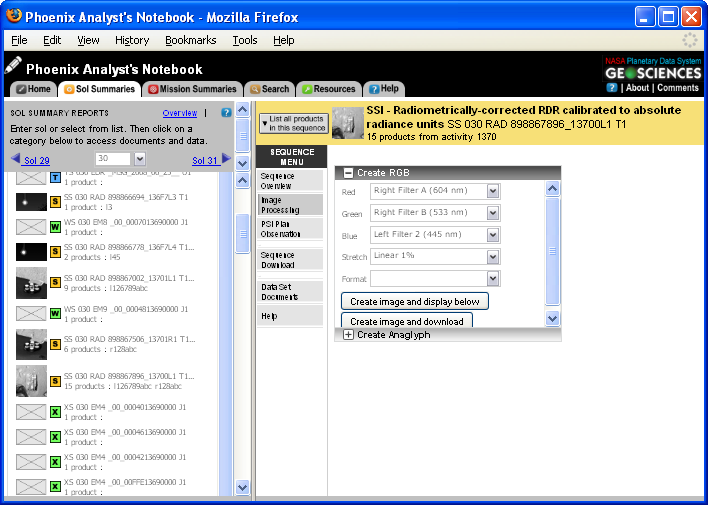
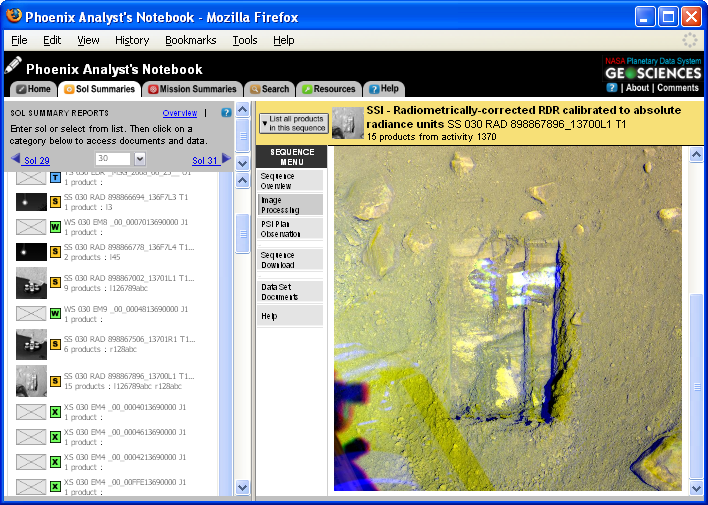
For images taken as part of a series, you can elect to create and download a custom RGB. To create an RGB, select the desired filters from the "Red," "Green," and "Blue" drop down menus, and then select the desired file format from the "Format" drop down menu. Finally, click on the "Create image and display below" or "Create image and download" button to preview or download your custom RGB.
Navigating to Create RGB
To reach the "Create RGB" page, select a product sequence. In the sequence overview, select "Image Processing" from the "Sequence Menu" and then select "Create RGB".
Create Anaglyph
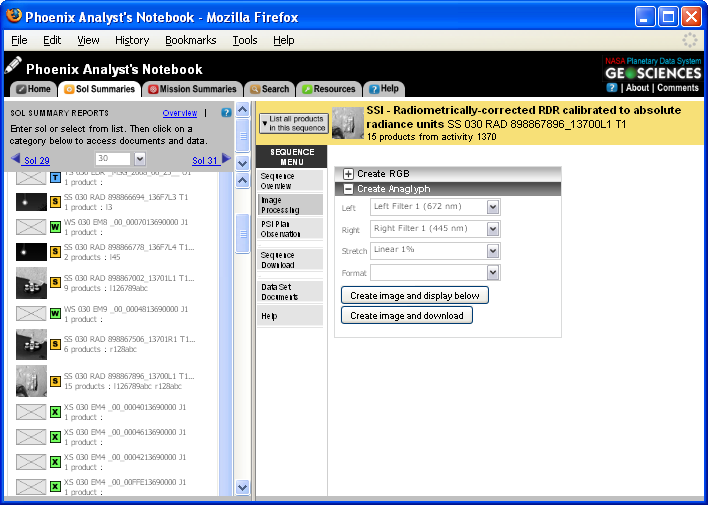
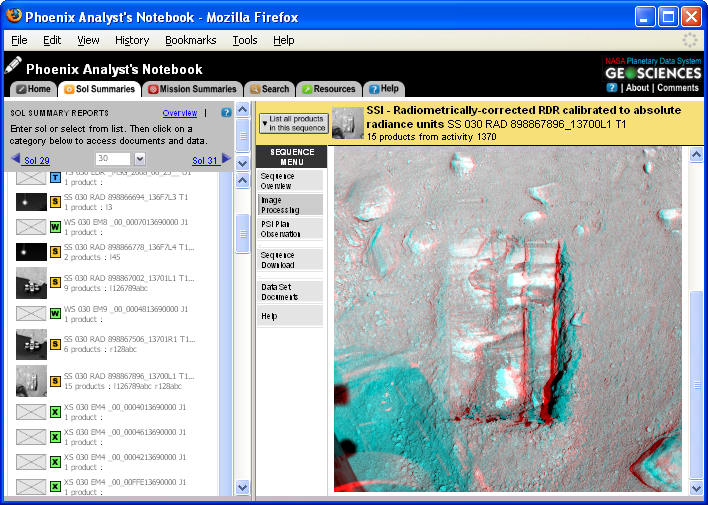
For images taken as part of a series, you can elect to create and download a custom anaglyph. To create an anaglyph, select the desired filters from the "Left" and "Right" drop down menus, and then select a file format from the "Format" drop down menu. Finally, click the "Create image and display below" or the "Create image and download" button to preview or download your custom anaglyph.
Navigating to Create Anaglyph
To reach the "Create Anaglyph" page, select a product sequence. In the sequence overview , select "Image Processing" from the "Sequence Menu" and then select "Create Anaglyph".
|